
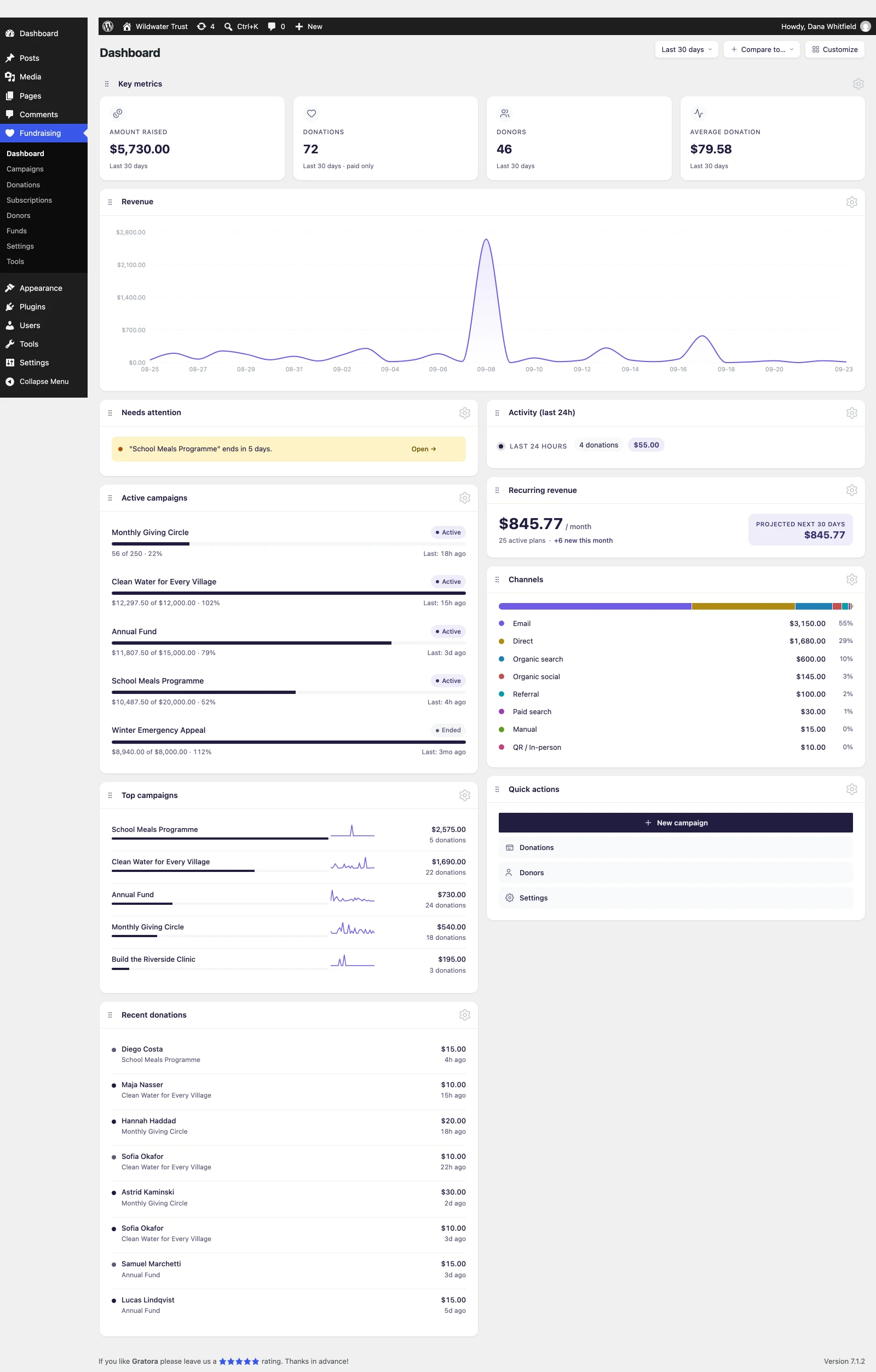
The Gratora dashboard gives you a snapshot of your fundraising performance. Click Fundraising in your WordPress admin menu to open it.
Activity (last 24h)
A strip at the top of the dashboard shows what has come in over the last 24 hours: the number of donations and the amount they add up to, how many donors left a note, and how many refunds were issued. It ignores the date range you have selected. When nothing has come in, it reads “Quiet so far today.”
KPI cards
Four cards track the headline numbers for the date range you have selected:
- Amount raised: The total raised in the range, in your base currency and net of refunds.
- Donations: The number of paid donations in the range.
- Donors: The number of distinct donors who gave in the range.
- Average donation: The average amount per donation.

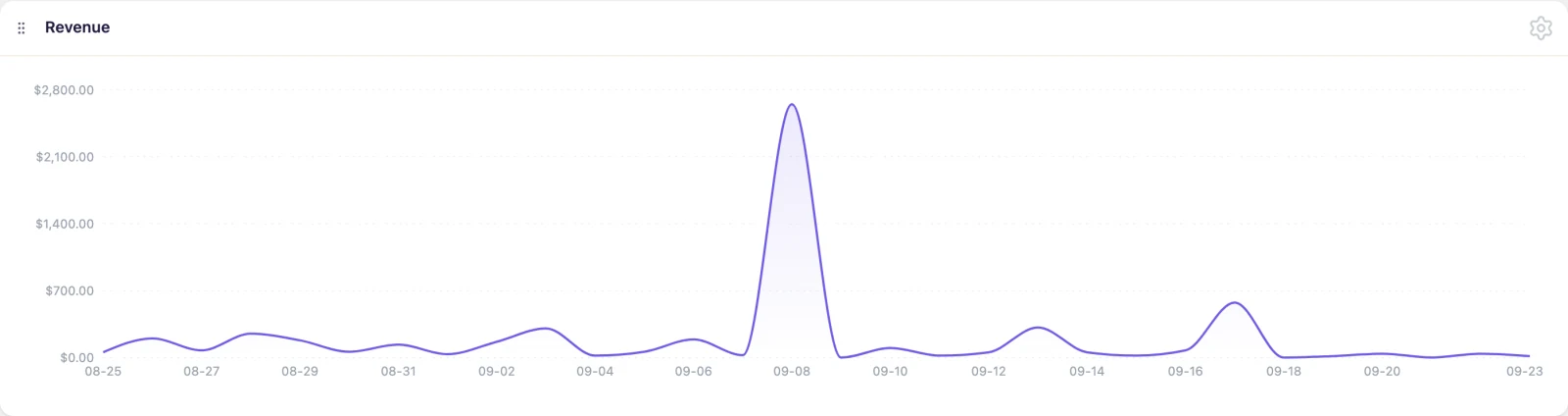
Revenue chart
The revenue chart displays your donation income over time. Use the date range selector in the page header to adjust the time period. It sets the range for the whole dashboard, not just the chart. Available ranges are:
- Today
- Last 7 days
- Last 30 days
- Last 90 days
- All-time
Comparison
Next to the range selector is a Compare to menu with three choices:
- No comparison
- Previous period
- Same period last year
Picking either comparison overlays that period on the chart and adds a percentage change to each KPI card. Comparison is unavailable when the range is Today or All-time, so the menu does not appear for those ranges.
Top campaigns
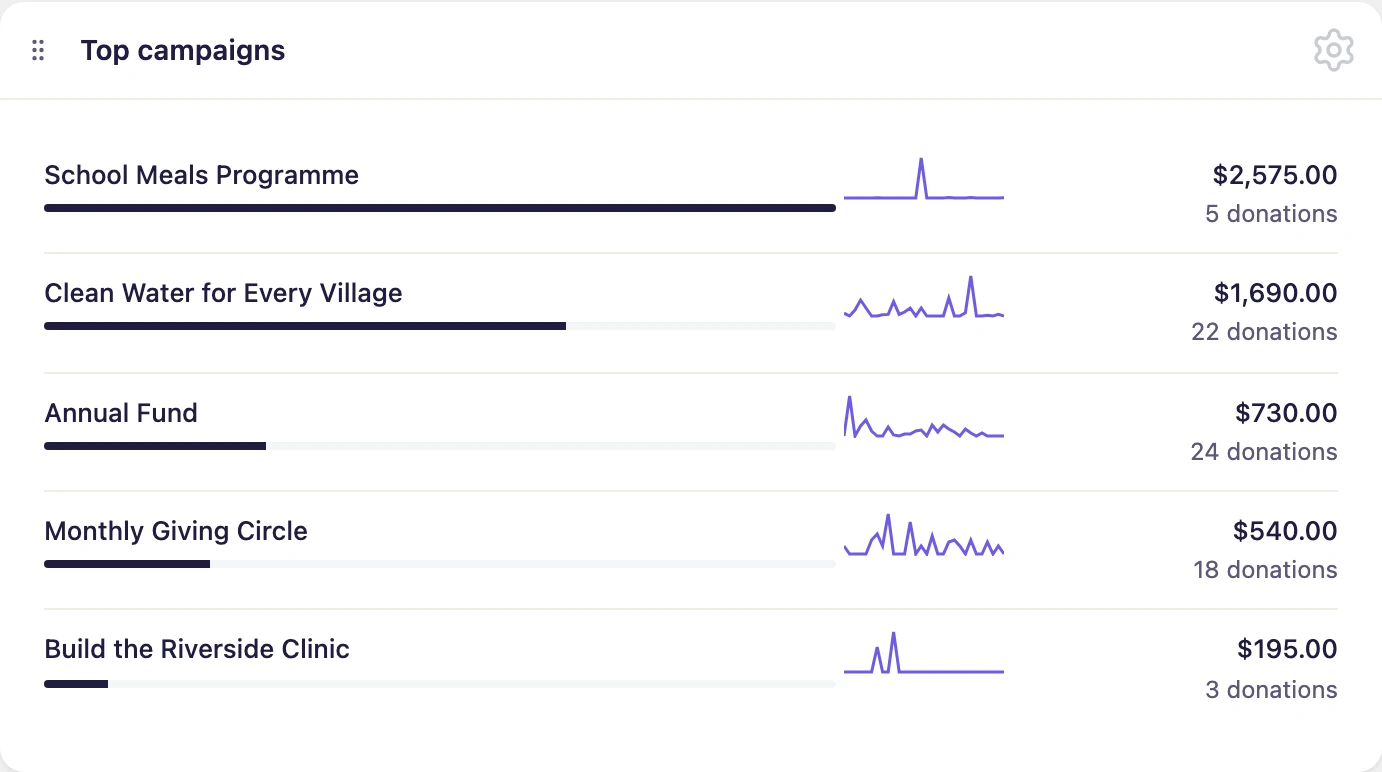
The top campaigns widget ranks your five highest-earning campaigns by amount raised in the selected range, each with a small trend line. Use this to quickly identify which campaigns are performing best.
Active campaigns
The active campaigns widget lists up to six published campaigns, ordered by amount raised, each with its status, a progress bar against its goal, and how long ago its last donation came in. Click a row to open that campaign. The figures here are lifetime totals, not the selected range.
Recent donations
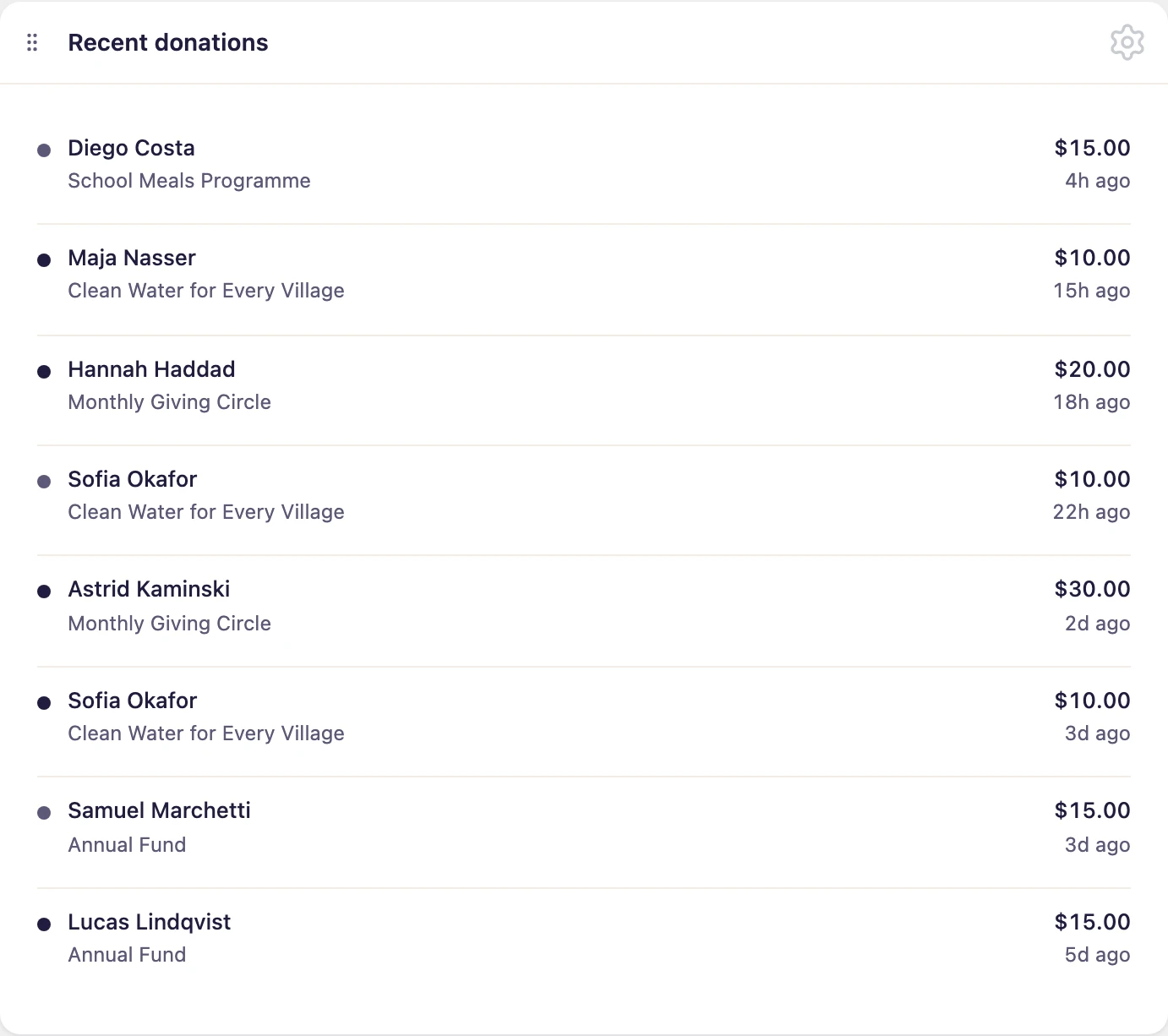
The recent donations widget lists your most recent paid donations, with donor name, amount, campaign and how long ago the payment came in. Donations given anonymously show as Anonymous. The list always shows the latest donations rather than the ones inside the selected date range, and it updates when you reload the dashboard.
Channels
The channels widget breaks the donations in the selected range down by where they came from: Email, Direct, Organic social, Paid social, Organic search, Paid search, Referral, QR / In-person, and Peer-to-peer. Gratora reads the UTM tags carried with each donation, and a donation that arrives without any counts as Direct. Until donations carry attribution, the widget says so rather than showing a bar.
Recurring stats
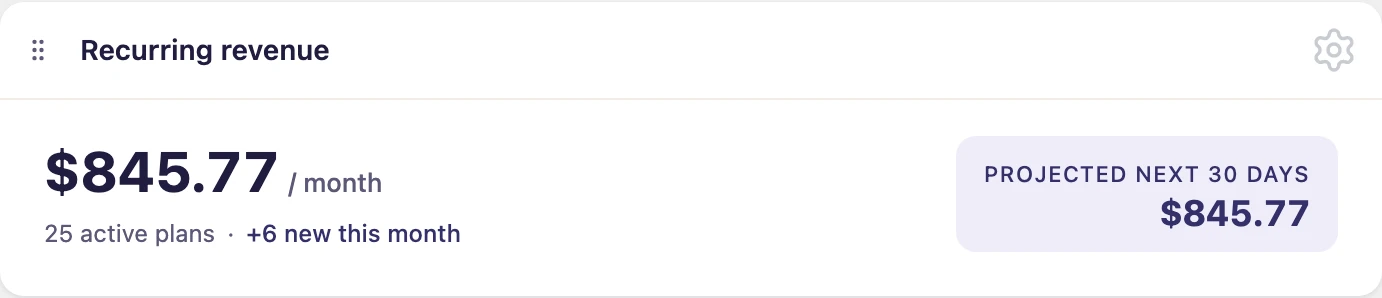
If you accept recurring donations, the recurring revenue widget shows:
- MRR (Monthly Recurring Revenue): The total amount you receive each month from active recurring plans.
- Active plans: The number of active recurring donation plans, and how many of those started this month.
- Projected next 30 days: What those active plans are expected to bring in over the next 30 days.
Until you have your first active plan, the widget prompts you to enable a recurring frequency on your form instead.
Needs attention
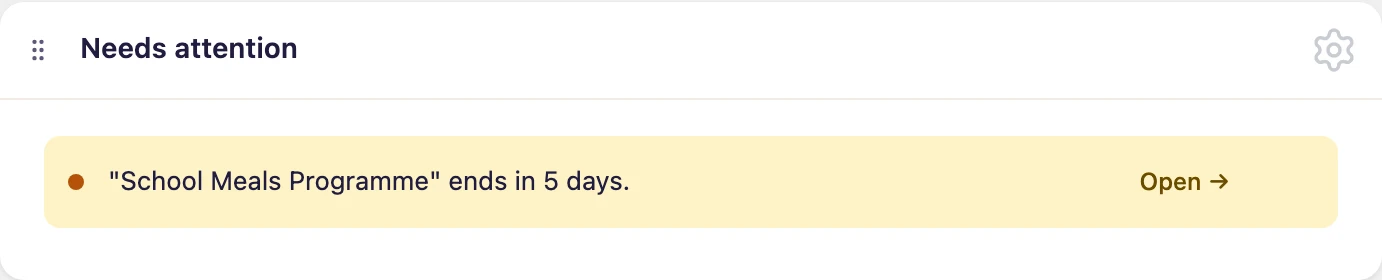
The needs attention panel alerts you to things worth acting on, each with a link to the right screen. It checks for:
- Failed donations: Donations that failed in the last 24 hours.
- Ending campaigns: Published campaigns whose end date falls within the next 7 days.
- Missing forms: Published campaigns with no default form, where the donate button on the campaign page does nothing.
- Donor notes: Donors who left a note with their donation in the last 7 days.
- No published campaigns: A prompt to create one, if you have none.
When none of these apply, the panel says nothing needs attention.
Each item has a dismiss button. Dismissing one hides it for you alone, with an Undo in the message that follows, and it comes back if the situation recurs.
Review this panel regularly to keep your fundraising running smoothly.
Quick actions
The quick actions widget has a New campaign button, which creates an untitled campaign and opens it for you to fill in, and links straight to Donations, Donors, and Settings.
Arranging the dashboard
Every widget carries its own options button with Move up, Move down, and Hide widget, and you can drag one to a new position by its handle. The Customize button in the page header lists anything you have hidden so you can bring it back, and offers Reset layout to return the dashboard to its default arrangement. The arrangement is saved for you alone, so changing yours does not change anyone else’s.
Next steps
- Create your first campaign to start raising funds.
- Visit Fundraising > Donations to review individual donation details.
- Visit Fundraising > Donors to manage your donor records.