
Tags, segments and follow-ups for your donors
Add what your team knows to each donor's record, find donors with segments that stay up to date, and give every follow-up an owner and a due day. Automation rules and staff reports run in the background.
What it does
-
Tags and fields of your own
Mark donors with tags in six colors, and keep what you want to know in fields of five types: text, number, date, dropdown and checkbox. A field can be filled from a donor's answer on a donation form.
-
Segments that stay up to date
Choose donors by how much, how often and when they gave, the campaign or fund, a recurring plan, consent, country, lifecycle stage, tag or field, and watch the count as you go. Export a segment as a CSV file, or tag everyone in it at once.
-
Tasks with an owner and a due day
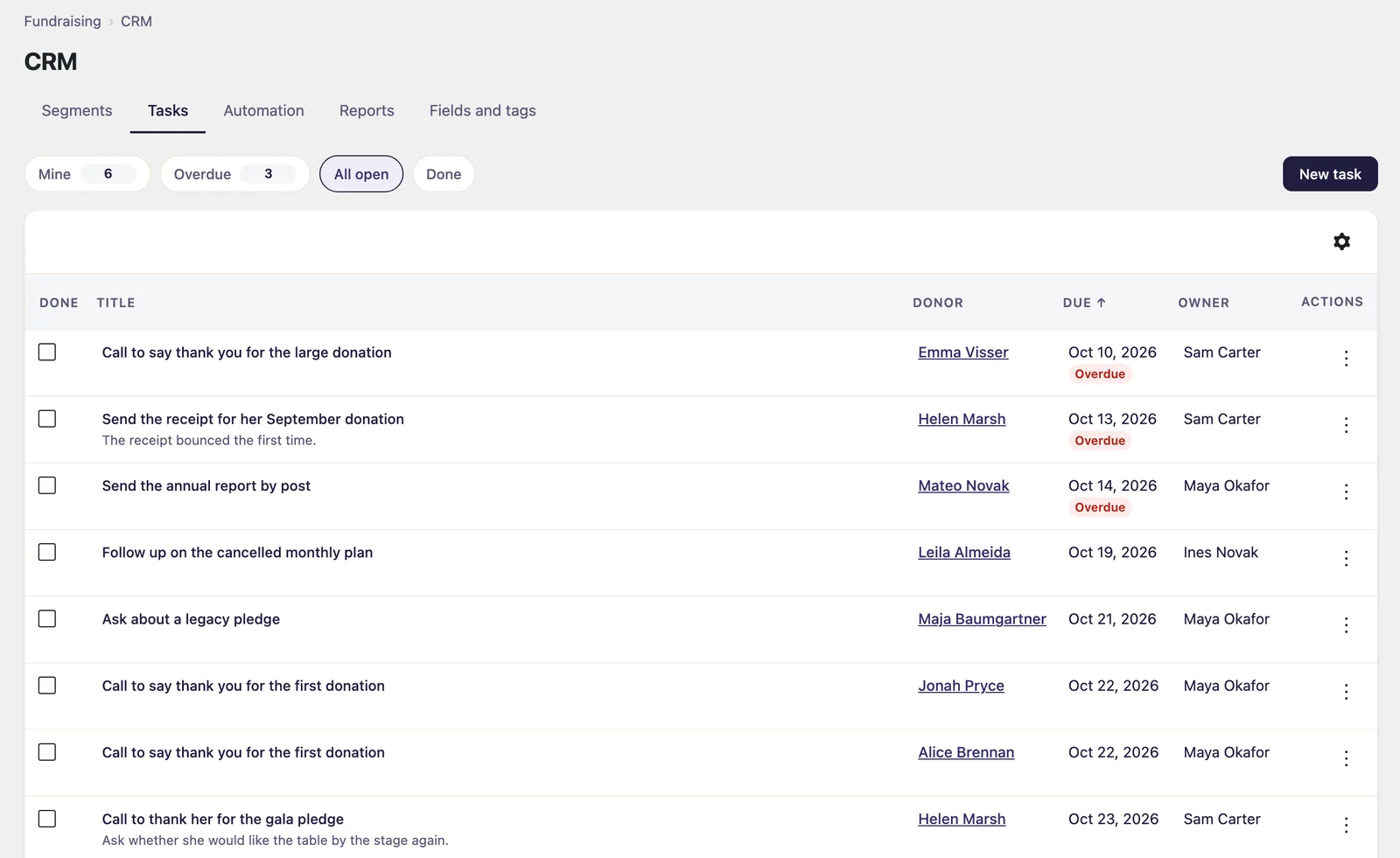
A task is a follow-up on a donor for someone on your team. The Tasks tab lists Mine, Overdue, All open and Done, a segment can give each of its donors a task in one go, and an owner hears by email when someone else gives them one.
-
Rules that act when something happens
When a first donation comes in, a renewal fails or a donor enters a segment, a rule can add a tag, set a field, make a task or tell your staff by email. It runs in the background, and its page says in words what it did, for whom and when.
-
A report for your team
Weekly or monthly, by email, to the people you choose: totals, new donors, donors at risk or lapsed, recurring plans, segment sizes, overdue tasks and automation runs. It carries figures and links, never a donor's name, and the CRM sends no email to donors.
-
A segment as a tag in your newsletter service
Through Gratora Connect, a segment's donors get a tag named after it at Mailchimp, Kit or ActiveCampaign, brought up to date once a day. Only donors Connect already holds there, who said yes to its consent purpose, are tagged, and nobody is added or unsubscribed.
From a donor record to a follow-up
-
1
Add your tags and fields
Under Fundraising, CRM, make the tags and fields your team needs, then tag donors and fill in fields on their profiles.
-
2
Build a segment
Choose rules and watch the count. Save it to see who is in it, then export it, tag everyone in it or give each of them a task.
-
3
Switch on rules and reports
Rules are carried out in the background shortly after what sets them off, and each report goes out on its day to the people you chose.