
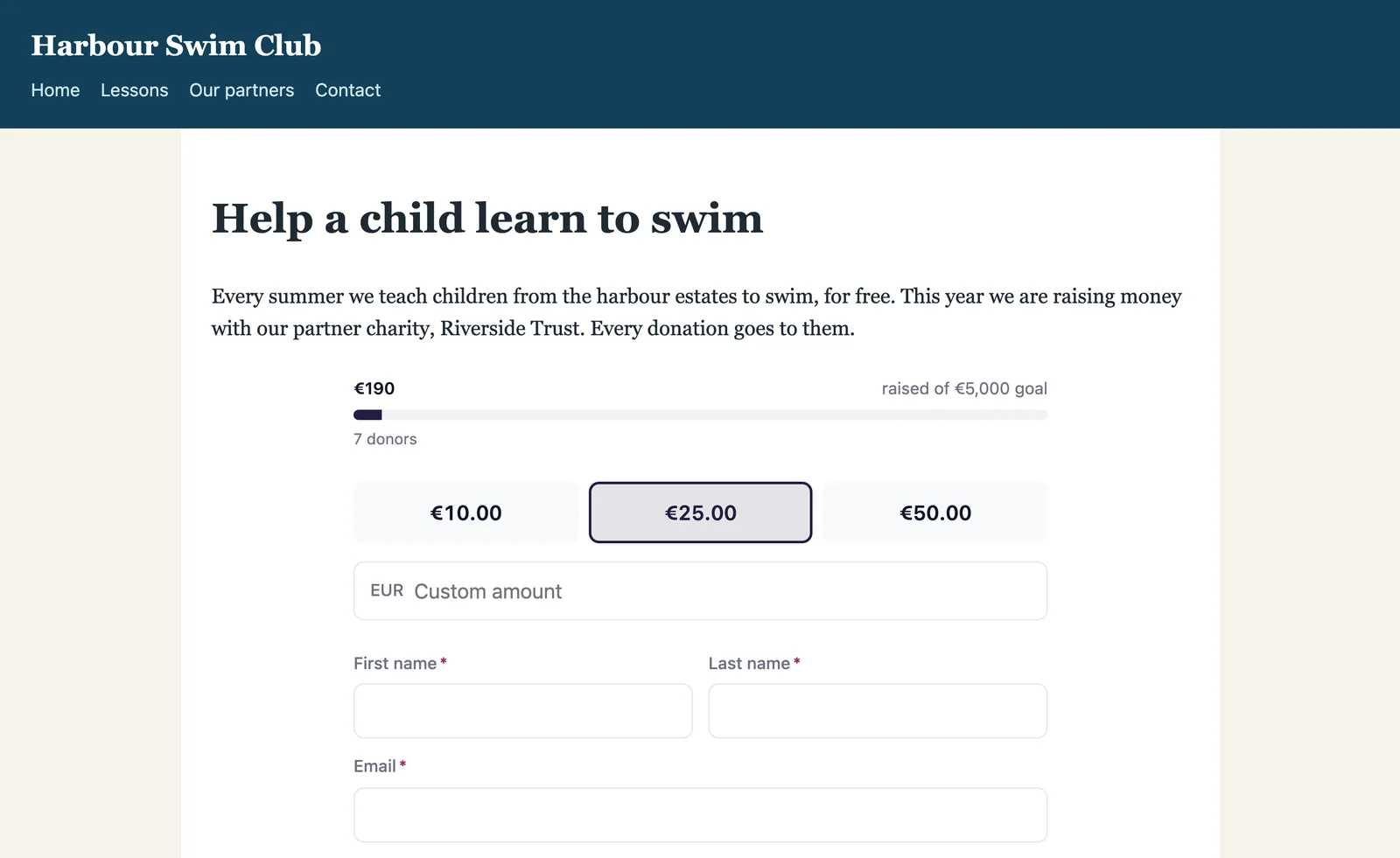
The Embedded Forms add-on shows one of your donation forms on websites you do not run, such as a partner’s. The form still comes from your own site, so what a donor types never passes through the other website, and each donation lands in your records. It is part of every plan, and needs Gratora 1.2.3 or later. On the Plugins screen it is listed as Gratora Embedded Forms.
Before you start
- Your license key is saved under Fundraising > License. Forms already on other websites keep working without it.
- A Privacy policy URL is set under Fundraising > Settings > Privacy, and your site’s address starts with https.
- The form and its campaign page are published.
- You have the Manage settings permission. Administrators have it. See Roles and permissions.
Turn a form on
- Go to Fundraising > Campaigns, open the campaign and switch to its Forms tab.
- Click the form to open it in the form builder.
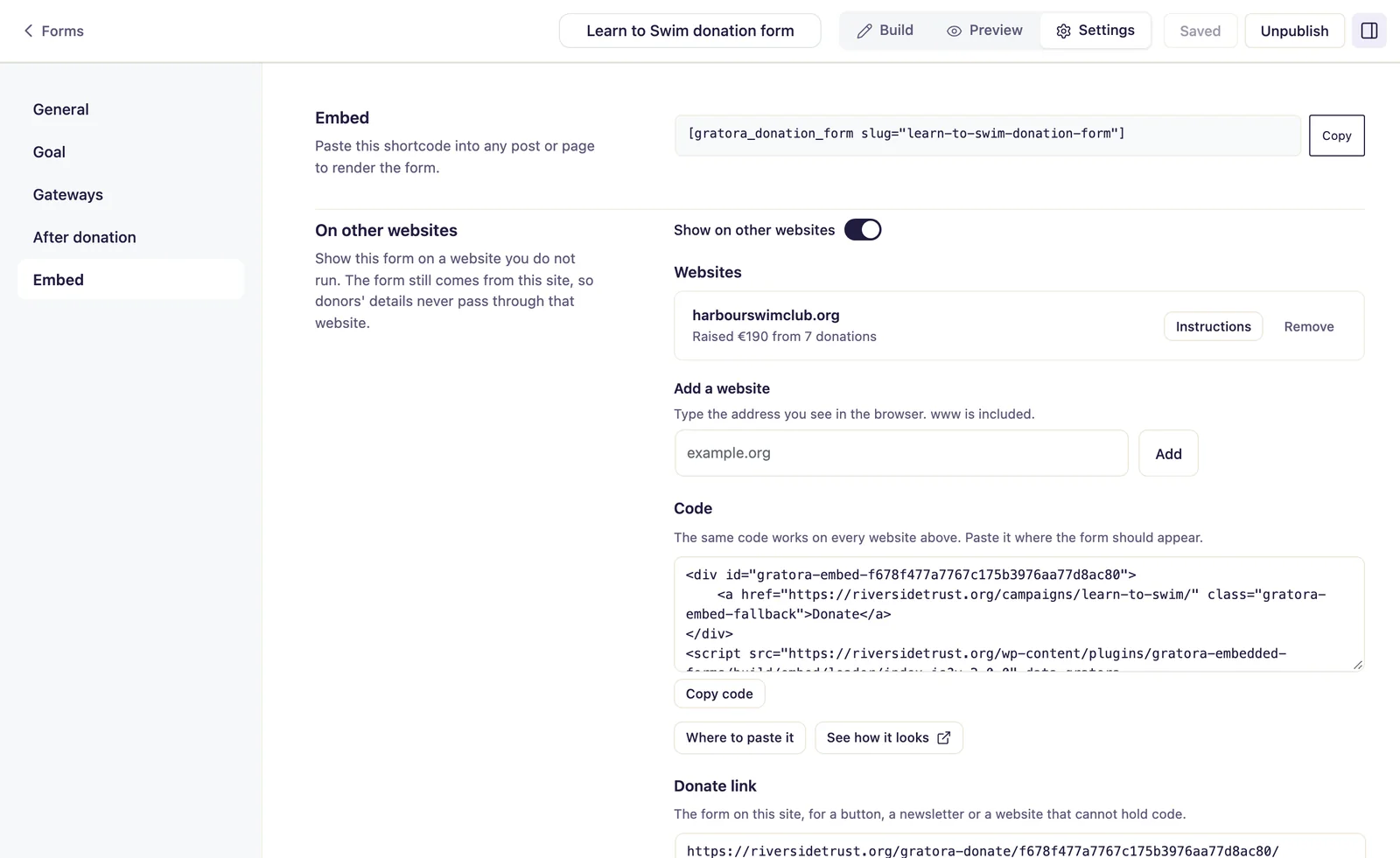
- Click Settings in the header, then Embed.
- Under On other websites, switch on Show on other websites.
Add the websites
- Under Add a website, type the address you see in the browser, like partner.org.
- Click Add.
www is included, and https://www.partner.org/donate/ is saved as partner.org. An address with * is refused, so add each website on its own.
Copy the code
Under Code, click Copy code. One code serves every website on the list. See how it looks shows the form as visitors of another website see it. A donation made there counts for no website.
Where to paste it
Where to paste it gives steps by website builder, taken from each builder’s own help pages:
| Website made with | What to do |
|---|---|
| Wix | Pasted code sits in a box where the form cannot appear. Link a Button to the Donate link. |
| Squarespace | Add a Code block and paste the code. Code runs only on some plans: on others, link a Button block to the Donate link. |
| WordPress.com | Add a Custom HTML block and paste the code. Only plans that allow plugins keep it: on others, add a Buttons block linked to the Donate link. |
| Another WordPress site | Add a Custom HTML block and paste the code. If part of it disappears, ask an Administrator to paste it. |
| Webflow | Add a Code Embed element, paste the code, save and publish. |
| Any other website | Paste the code into the page’s HTML. |
Where code cannot go, put the Donate link on a button or in a menu. It opens the form on your site.
Send instructions
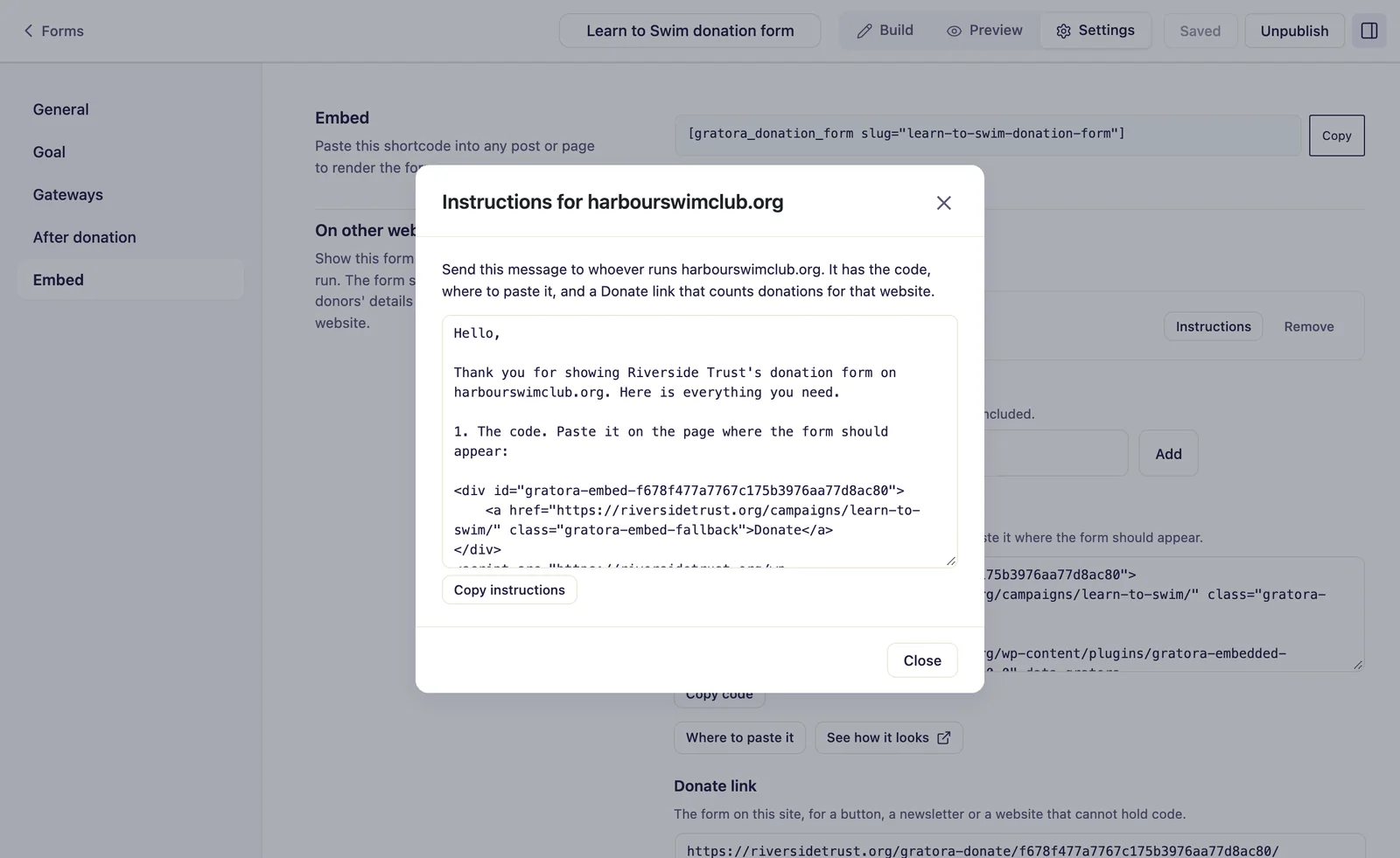
Click Instructions on a website’s row, then Copy instructions, and send the message to whoever runs that website. It holds the code, these steps and a Donate link that counts donations for that website.
What visitors see
On a listed website, the form sits in the page. It offers no offline donations or bank transfers, and a donor paying by a method that finishes at their bank, such as iDEAL, continues on your site.
On any other website, after you remove one, or while the form is off, visitors see only a Donate link, which opens your campaign page.
What Raised counts
A website’s Raised figure adds up the paid donations made on it or through its own Donate link, after refunds, in your default currency. Renewals of a recurring donation started there count too. Test donations count only while test mode is on.
Remove a website or turn the form off
- Click Remove on a website’s row and confirm. Within a minute, visitors there see only the Donate link.
- Switch off Show on other websites to stop every website. Switched on again, the same code works.
A removed website’s donations stay in your records, and its figure returns if you add it again.