
The AI Assistant add-on puts a chat assistant in your WordPress admin that reads your fundraising records and answers in plain language, and can carry out tasks for you. Anything that would change your data waits for your approval first. It is part of the Advanced and Elite plans. On the Plugins screen it is listed as Gratora AI.
What it does
- Answers questions about your data: totals, trends, donors, campaigns, recurring revenue.
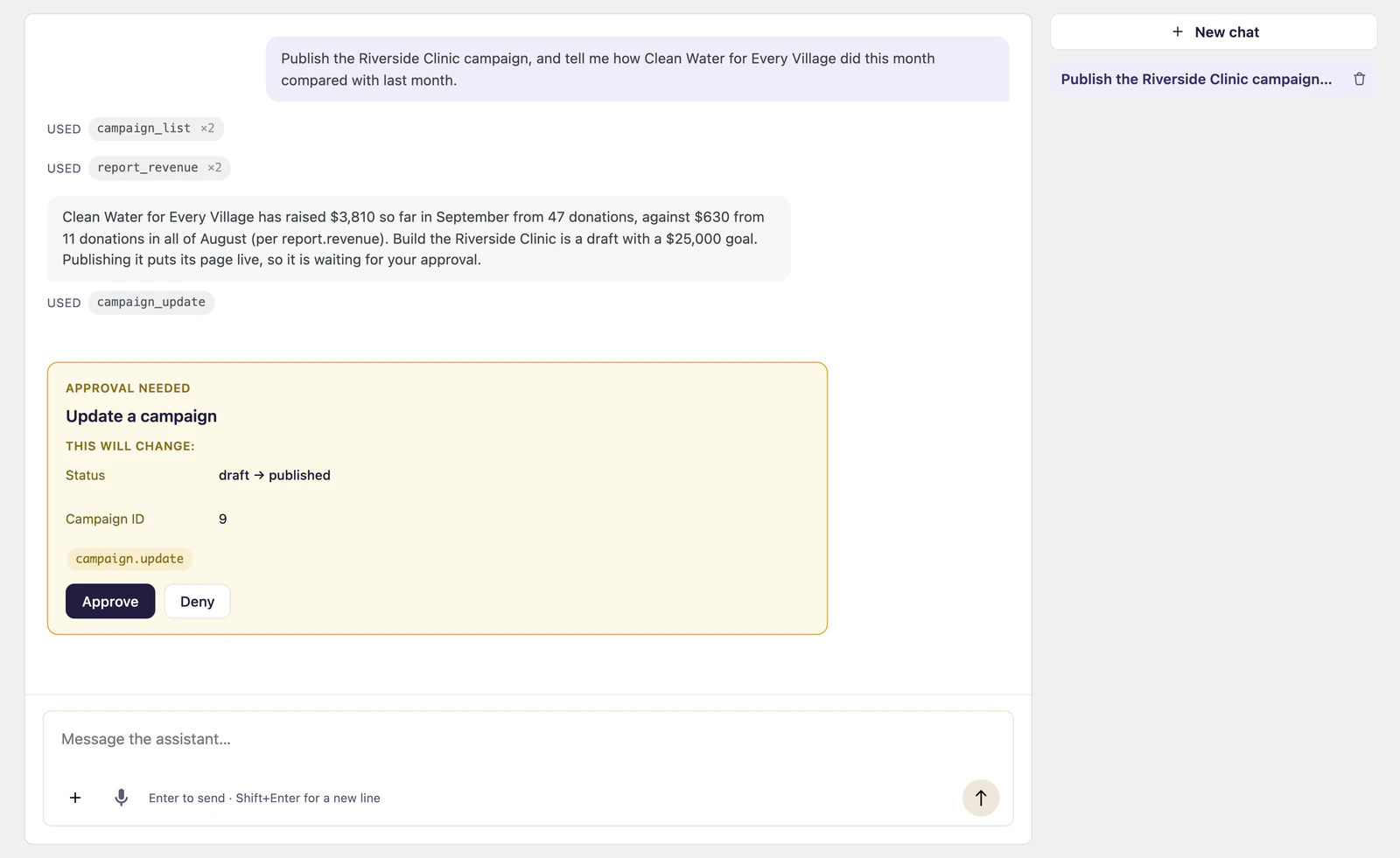
- Carries out tasks by calling the same commands the rest of Gratora uses, such as creating a campaign. Every command except emailing a donor is available to it, including those of the other add-ons you have installed.
- Waits for you before anything that changes data. The change stops in an approval card showing the exact command and values, and runs only when you click Approve.
- Helps build forms. In the form builder, Ask AI turns a change you describe into edits to your donation form.
- Opens with a briefing of what needs your attention.
You bring the AI provider
The assistant works with Anthropic, OpenAI or Google Gemini, on an API key you get from that provider. You pay the provider directly for what you use. The key is stored encrypted and only ever leaves your site to call the model you chose.
Set it up
- Get an API key from Anthropic, OpenAI or Google.
- Go to Fundraising > Settings > Assistant.
- Under Model access, choose the Provider and paste your API key.
- Choose a Model. The list is read from your provider once the key is saved.
- Click Save.
- Go to Fundraising > Assistant and ask it something, for example “How did donations go last month?”
Where the settings live
Fundraising > Assistant is the chat. Your conversations are listed there, and New chat starts another.
Fundraising > Settings > Assistant has three views:
| View | What it is for |
|---|---|
| Settings | The provider, API key and model. Also the address for connecting an outside AI client over MCP. |
| Activity | Every command run through Gratora, most recent first, with its outcome. |
| Tools | Every command the assistant can call. Switch off any you would rather it left alone. |
What the provider is shown
Nothing is sent until you ask the assistant something. Then your question goes to the provider, with the records the assistant reads to answer it. Answering a question about a donor means sending that donor’s record, email address included. If you would rather that never happens, switch off the tools that read donor data under Tools.
AI answers can be wrong. Check them before you rely on them, and read each approval card before you approve it.
Connect an outside client
Under Settings, Connect an outside client gives you a server address for AI clients that run outside WordPress and speak MCP. Paste the address into the client. It sends you back to your site to sign in and approve it, and it gets the access of the account that approves it: reading runs, and changes ask first. Your site needs https and has to be reachable without a password. Connected clients are listed under Connected applications, where you can disconnect them.