
The Connect add-on sends what happens in Gratora to the other tools your organization uses: a signed webhook for your own systems or an automation tool, a Slack channel, or a Mailchimp audience. It is part of every plan.
What it sends
A destination listens for the events you choose, out of thirteen:
- Donations: created, completed, failed and refunded.
- Donors: created, updated, first donation and erased.
- Consent: granted and revoked.
- Recurring donations: renewed, payment failed and canceled.
Slack and Mailchimp each offer only the events that make sense for them. Every delivery is logged, failed ones are retried, and you can send any delivery again yourself.
Where the settings live
Go to Fundraising > Connect. The screen has three tabs:
- Destinations, where you add and edit the places events go.
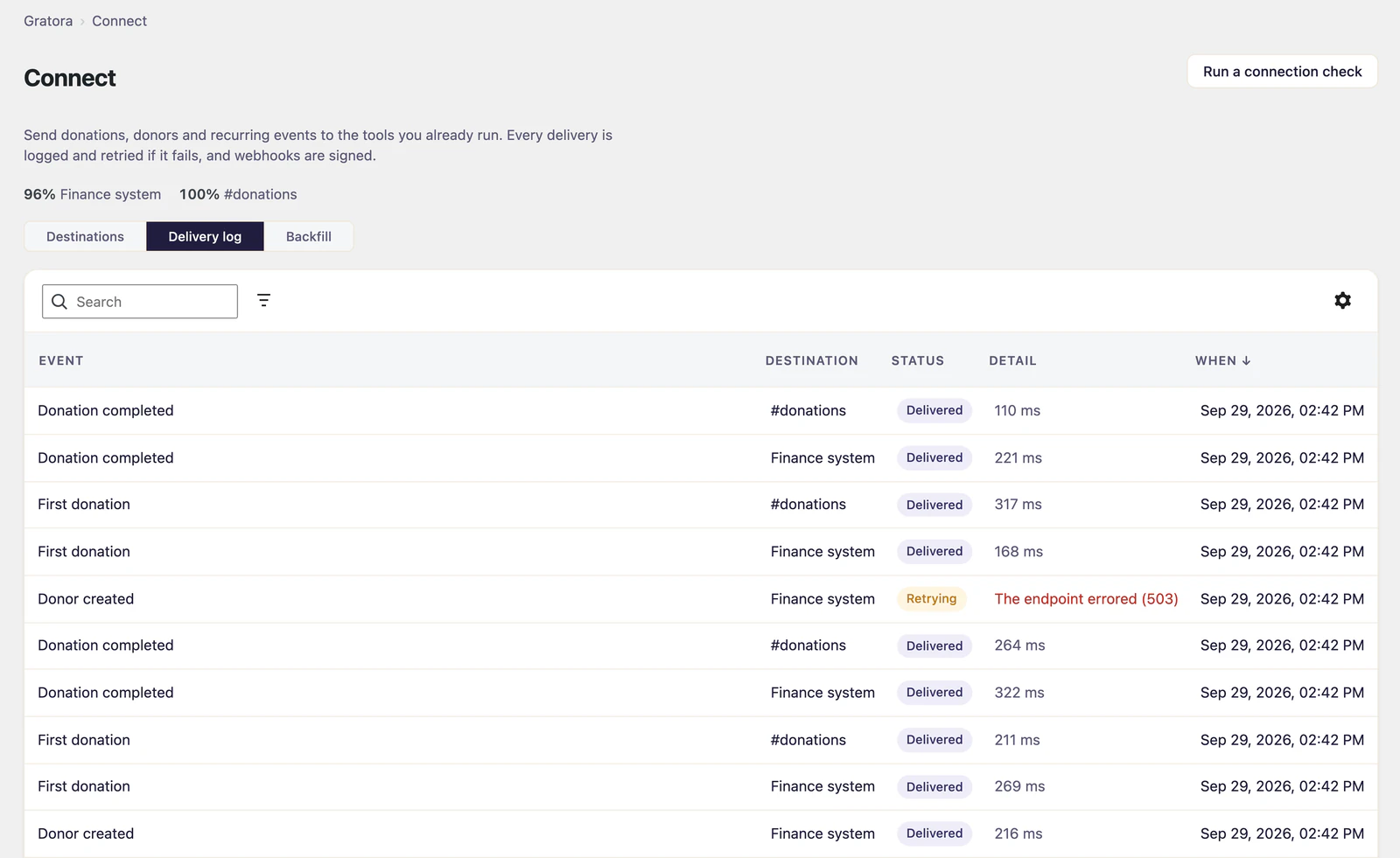
- Delivery log, every attempt with where it went, what came back and why a failure failed.
- Backfill, for loading the donors you already have into a Mailchimp audience.
Add a destination
- Go to Fundraising > Connect and click Add a destination.
- Choose where events go: Webhook, Slack or Mailchimp.
- Name the destination and fill in its details (see below).
- Under Send these events, tick the events it should receive. With none ticked it sends nothing.
- Click Create, then use Test connection or Send a test event to check it works.
Test donations are left out unless you turn on Include test donations for that destination, so a test never reaches a live audience or channel.
You can narrow what a destination sends by minimum amount, by frequency, by campaign and by fund, and strip any field you would rather not send. Pause stops a destination without deleting it. When you resume it, anything that failed while it was off can be sent again.
Webhook
For your own systems, or for automation tools such as Zapier, Make and n8n.
- Endpoint URL must be an https address.
- After you save, Gratora shows the destination’s signing secret once. Copy it, then click I have copied it. Your receiving end uses it to check that each delivery came from your site and arrived unchanged. Webhooks are signed to the Standard Webhooks specification.
- Rotate signing secret issues a new one. Retire the old one once your receiving end uses the new one.
Subscriptions that Zapier or Make create for themselves are hidden from the list until you turn on Show platform subscriptions.
Slack
Posts donations and recurring activity to a channel.
- In Slack, create an incoming webhook for the channel, and paste its URL into Credential.
- You can set a minimum amount, so only larger donations are announced, and a link for the message’s button.
Mailchimp
Keeps a Mailchimp audience in step with your donors.
- Paste a Mailchimp API key into Credential, then choose the Audience.
- Tags to apply tags every contact this destination syncs.
- Respect double opt-in is on by default: new contacts are added as pending, and Mailchimp sends its confirmation email.
- Choose who is sent and on what lawful basis. With Consent, name the consent purpose, and only donors who ticked that box are sent.
- Once the destination is saved, map your audience’s fields to donor details under Field mapping.
Load your existing donors
A Mailchimp destination only hears about donors from the moment it is set up. To load the donors you already have:
- Open the Backfill tab.
- Choose the Mailchimp destination under Send to.
- Choose the dates donors gave between, and optionally a minimum number of donations.
- Click Start backfill.
The backfill runs in the background and keeps going if you leave the page. It tells you beforehand how many donors match and how many have given the consent the destination needs, and only those are sent.
When something fails
Open the Delivery log to see each attempt, its status and the detail the endpoint sent back. Failed deliveries are retried on their own. To try one again now, click Send again. Run a connection check at the top of the screen checks that your site can send at all.