
A scheduled report emails the people you choose on your team a summary every week or every month. It carries figures and links into the admin, and never a donor’s name, address or email address. To set the add-on up, see Get started with Donor CRM.
Reports need Use the donor CRM and View donors, and so does everyone a report goes to.
Make a report
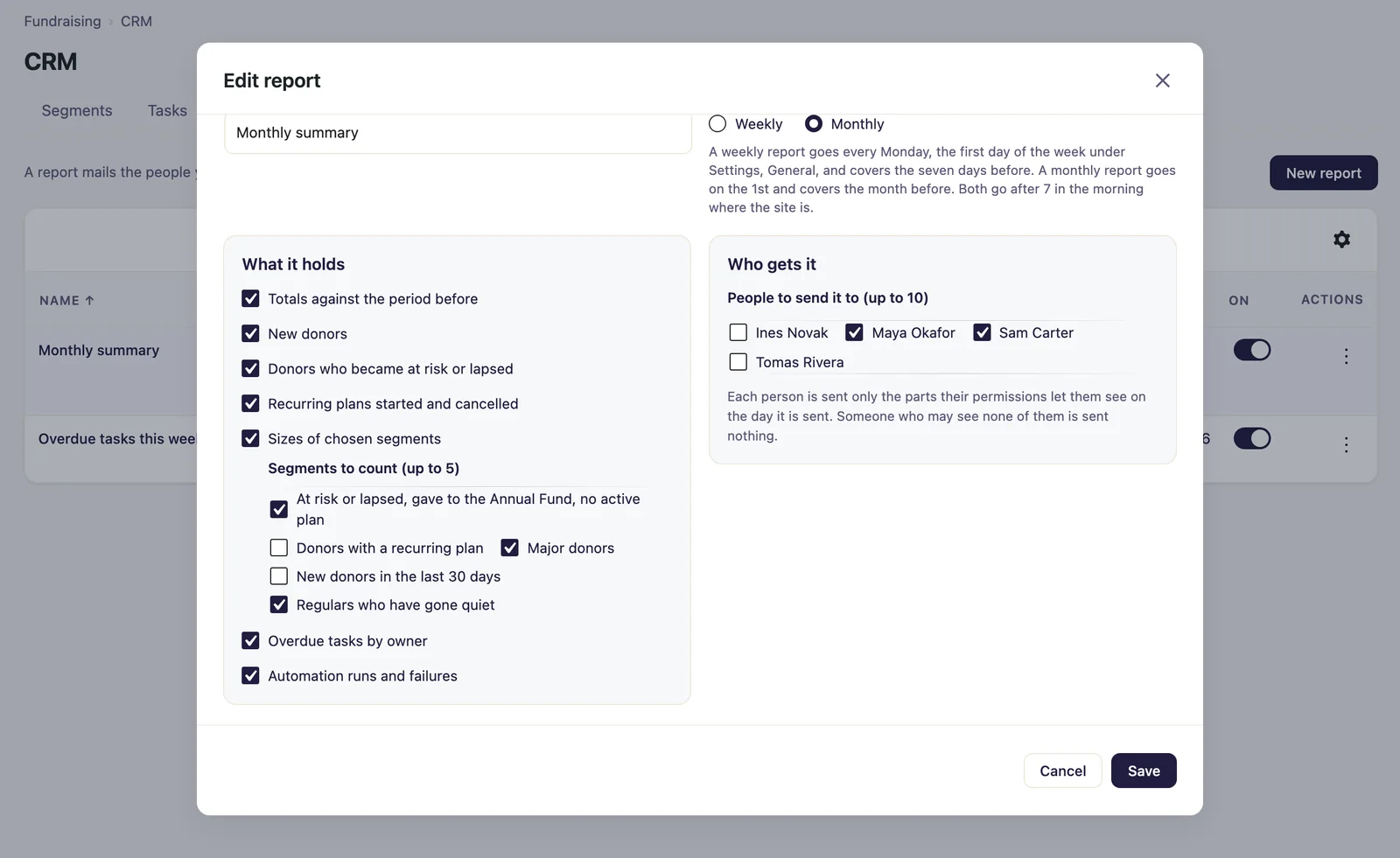
- Go to Fundraising > CRM and open Reports.
- Click New report and enter a Name.
- Under How often, choose Weekly or Monthly.
- Under What it holds, tick the parts you want. With Sizes of chosen segments, tick up to five segments under Segments to count.
- Under Who gets it, tick up to ten people.
- Click Save.
A new report is switched on as it is saved, and the Next column of the list says when it is first sent. The On column switches a report off and on again.
When it is sent
- A weekly report goes on the first day of the week set under Settings > General in WordPress, and covers the seven days before.
- A monthly report goes on the 1st, and covers the month before.
- Both go after 7 in the morning in the site’s time zone, through the site’s scheduled work.
Only the last week or month that has ended is sent. A report sends nothing for a period that ended before it was made, switched back on, or changed between weekly and monthly. So a weekly report made on a Monday is first sent the Monday after. The figures are as they stand when the email is made.
What it holds, and who is sent what
Each person is sent only the parts their own permissions let them see on the day it is sent, and the email ends by naming what was left out for them. Someone who may see none of the parts is sent nothing.
| Part | What it says | Who is sent it |
|---|---|---|
| Totals against the period before | Raised, donations, donors and the average donation, each against the period before | People with View dashboards & reports |
| New donors | Donors whose first donation was in the period | Everyone on the report |
| Donors who became at risk or lapsed | How many donors moved into those stages. Needs Gratora 1.2.2 or later, and is not offered on an older version | Everyone on the report |
| Recurring plans started and cancelled | How many plans started and how many were canceled in the period | People with View donations |
| Sizes of chosen segments | Each segment’s size now, against the last report sent | Everyone on the report. A segment with a rule about funds shows its size only to people with View donations |
| Overdue tasks by owner | Open tasks past their due day, for each owner | Everyone on the report |
| Automation runs and failures | How the period’s runs ended, and the rules whose runs failed | Everyone on the report |
Preview it, or send yourself a copy
The menu at the end of a report’s row has Edit, Preview, Send me a copy and Delete.
- Preview shows the email you would be sent now, with the figures of the last week or month that ended. For a report not sent yet, it also says which period its first email will cover.
- Send me a copy emails that to you.
Neither counts as a send, and the report still goes out when it is due. Last sent in the list says when it last went, or Never.
The email
The report is a plain-text email, Donor CRM report, under Fundraising > Settings > Emails. With Gratora 1.2.2 or later it is listed under Staff emails. Its default subject is {report_name}: {period}, and its body can use these tags:
{report_name}: the report’s name{period}: the week or month it covers{figures}: every part the person may see{reports_url}: a link to the Reports tab{site_name}: your site’s name
Keep {figures} in the body, or the email goes without its figures. With the email switched off nobody is sent a report, and the periods it missed are not sent later.