
A segment is a saved set of rules that selects donors, such as everyone who has given $1,000 or more, or regular donors who have gone quiet. It holds only its rules, so who is in it is worked out each time you open it. This article covers building one, its rules, and exporting, tagging or making a task for everyone in it. To set the add-on up, see Get started with Donor CRM.
Segments need Use the donor CRM and View donors. A segment is also the way to find donors by tag or field value, as Gratora’s donors list does not filter by them.
Build a segment
- Go to Fundraising > CRM and open Segments.
- Click New segment and enter a Name.
- Under Donors must match, choose All rules or Any rule.
- Choose what the rule is about, how it compares and the value.
- Click Add rule for another rule, or Add group for rules with their own All rules or Any rule.
- Click Save.
While you edit, the count under the rules says how many donors match now, for example “16 donors match”. After saving, the segment opens on its own view: its rules in words, how many donors match, and the list of them.
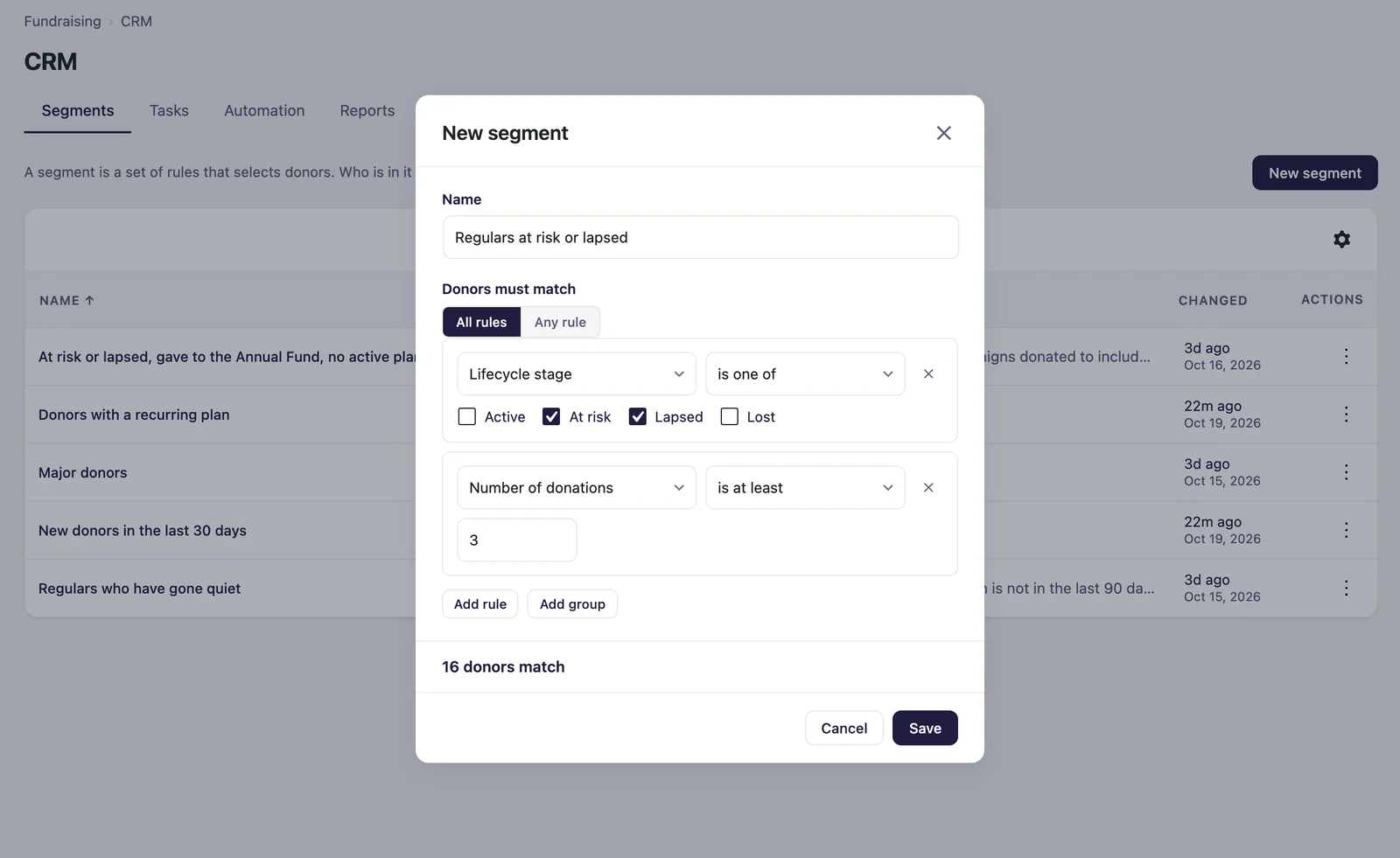
The rules
| Rule | Compares |
|---|---|
| Lifetime total | At least, at most or between two amounts |
| Number of donations | At least, at most or exactly |
| Largest donation | At least or at most an amount |
| First donation, Last donation | Before or after a day, in the last or not in the last number of days |
| Donated between | Any donation between two days |
| Lifecycle stage | Active, At risk, Lapsed or Lost |
| Recurring plan | Running, not running, ended, not ended, never set up or set up |
| Campaigns donated to, Funds donated to | Include or do not include |
| Country, Donor type | One of, or for a country none of |
| Tags | Include or do not include |
| Consent for each purpose, such as Consent for Email newsletter | Granted or not granted |
| Each custom field | By its type, such as contains for text or is ticked for a checkbox |
Lifecycle stage needs Gratora 1.2.2 or later, and is not offered on an older version. The stages are Gratora’s own, by when a donor last gave: Active in the last 90 days, At risk 90 to 180 days ago, Lapsed 180 days to a year ago, and Lost more than a year ago. A donor who never gave is in none.
Rules about donations count what Gratora’s totals count, so test donations, donations refunded in full and ticket orders are left out. An erased donor is never in a segment. A rule about funds needs View donations.
Export a segment
- Open the segment and click Export.
- Under What is this list for?, choose a consent purpose, which leaves out every donor who did not agree to it, or All donors, for internal use, which also carries their tags. Each choice says how many donors it holds.
- Click Export.
The CSV file has each donor’s name, email, country, donor type, number of donations, lifetime total, currency, first and last donation, and a column for each custom field. Its file name says what the list is for. Exporting needs Export donor list (CSV), and a file holds at most as many donors as Gratora’s own donor export.
Tag everyone
- Open the segment and click Tag everyone.
- Choose a Tag.
- Click the button, which names the count, such as Tag 16 donors.
The dialog shows how far it has got and can be stopped. A donor who already has the tag is left as they are, and at the end it says how many were tagged and how many already had it. There is no undo, and what was tagged stays tagged if you stop part way. Deleting a tag under Fields and tags takes it off every donor who has it.
Task for everyone
- Open the segment and click Task for everyone.
- Fill in the Title, Note, Due day and Owner.
- Click the button, which names the count, such as Make 16 tasks.
Each donor in the segment gets one task. If a request fails part way, Try again goes on from where it stopped, and nobody gets a second task. An owner who is someone else gets one email for the whole run.
After you close the dialog, the segment’s view offers Undo until you leave it. Undo removes the tasks of that run that nobody has ticked or changed, and says how many it removed and how many it kept. It does not take back the email to the owner. See Tasks in Donor CRM.
Edit or delete a segment
Edit opens the rules again. Delete asks first and changes no donor. If an automation rule names the segment, it is not carried out until you edit it. If the segment is pushed to Connect, deleting it stops the push and takes its tag off. See Push a segment to Connect.