
A task is a follow-up on a donor: a title, and if you want them a note, a due day and an owner from your team. Tasks are added and ticked on the donor’s profile and on the Tasks tab, which lists everyone’s. To set the add-on up, see Get started with Donor CRM.
Tasks need Use the donor CRM and View donors. Anyone with both can change, tick or delete any task.
Add a task on a donor’s profile
- Open the donor under Fundraising > Donors.
- In the CRM card, click Add a task.
- Enter a Title. Note, Due day and Owner are optional.
- Click Save.
The card lists the donor’s open tasks, the soonest due first, with each one’s due day and owner. Tick the box to mark a task done. The done tasks fold away under a line that counts them, such as “1 done”. The menu next to a task has Edit and Delete.
The Tasks tab
Go to Fundraising > CRM and open Tasks. It has four views:
| View | What it lists |
|---|---|
| Mine | Your open tasks, with how many there are |
| Overdue | Everyone’s open tasks whose due day has passed, with how many there are |
| All open | Every open task |
| Done | Tasks that were ticked, the latest first |
Each row has the title and note, the donor, the due day and the owner. Ticking a task here shows Undo on its row, and pressing the box again also takes the tick back. The row’s menu has Edit, Open donor and Delete. Deleting asks first and cannot be undone.
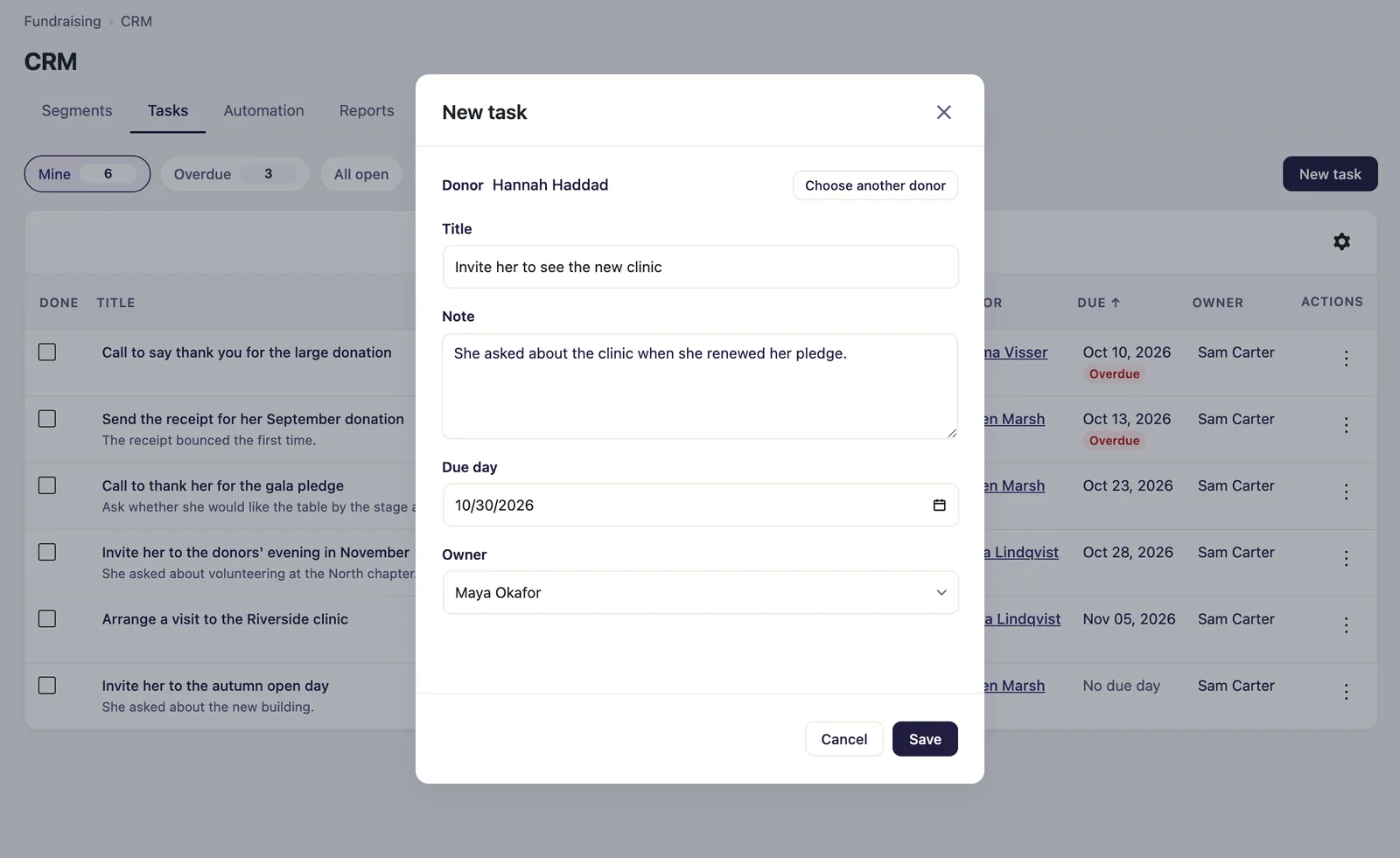
To add a task from the tab:
- Click New task.
- Under Donor, type part of a name or a whole email address, and choose the donor.
- Fill in the Title, and the Note, Due day and Owner if you want them.
- Click Save.
Due days and overdue tasks
A task is overdue once its due day has passed, in your site’s time zone. A task due today is not overdue yet, a task with no due day never is, and a done task never is.
Overdue tasks are counted by owner in a scheduled report, and an automation rule can be set off when a task becomes overdue. See Scheduled reports in Donor CRM and Automation rules in Donor CRM.
Owners
The Owner menu lists the people on your team who can use the CRM and view donors, and Nobody. A task with no owner is in nobody’s Mine view, and is listed in the other views like any other.
The email to an owner
When someone gives a task to someone else, the new owner gets one email, Task assigned. It says who gave the task, its title and its due day, with a link. It says nothing about the donor and does not carry the note.
No email is sent:
- When you give a task to yourself.
- To the previous owner, when a task moves to someone else.
- When anything else about the task changes, or it is ticked or deleted.
- When an automation rule makes the task.
A Task for everyone run sends its owner one email for the whole run, not one for each task. You can edit the email or switch it off under Fundraising > Settings > Emails. With Gratora 1.2.2 or later it is listed under Staff emails.
When a donor is erased
When a donor is erased in Gratora, the title and the note of their tasks are emptied. Each task stays as a record that the work was done, without its words.
To make one task for every donor in a segment, see Segments in Donor CRM.