
A Gratora plan comes with a license key and the add-ons in your plan. This guide takes you from the purchase email to add-ons that are installed, activated and receiving updates.
Before you start
- The free Gratora plugin must be installed and active. Every add-on runs on top of it.
- Your site needs WordPress 7.0 or higher and PHP 8.1 or higher.
- You need an administrator account on the site.
Find your license key
Right after checkout we email your license key to the address you used at checkout. The subject is Your Gratora license key. The email lists the add-ons your key covers and links to your account.
Keep this email. Your account only ever shows the first few characters of a key, so the email is the one place that holds the whole key.
No email after a few minutes? Check your spam folder first. If it is not there, go to the help center, click Submit a request and use the email address you bought with.
Each purchase is its own license with its own key. If you buy a second plan, you get a second key, and each one renews on its own.
Sign in to your account
Your account at gratora.net/account holds your downloads, your licenses, the sites they are active on, and billing. There is no password.
- Go to gratora.net/account.
- Enter the email address you bought with and click Email me a link.
- Open the link in the email we send you.
The account has these tabs:
| Tab | What it is for |
|---|---|
| Requests | Your support requests and our replies |
| Licenses | Each license, its add-ons and the sites they are active on |
| Plan | Changing your plan or adding sites. Shown while a plan bought on gratora.net is active. |
| Downloads | The latest release of every add-on in your plans |
| Billing | Your card, invoices and canceling, through Stripe |
| Settings | Your name. To change your email address, write to us and we move everything across. |
Download the add-ons
- In your account, open Downloads.
- Click Download next to each add-on you want. Each one downloads as a zip file, for example
gratora-p2p.zip. - Keep the files as they are. WordPress installs the zip itself, so there is nothing to unzip.
You only need the add-ons you plan to use. The rest can be downloaded any time while your license is active.
Install them in WordPress
- In your WordPress admin, go to Plugins > Add Plugin.
- Click Upload Plugin at the top of the page.
- Choose the zip file and click Install Now.
- Click Activate Plugin.
Repeat these steps for each add-on. On the Plugins screen each one is listed with the Gratora name, for example Gratora Peer-to-Peer. The AI Assistant add-on is listed as Gratora AI Assistant.
Add your license key
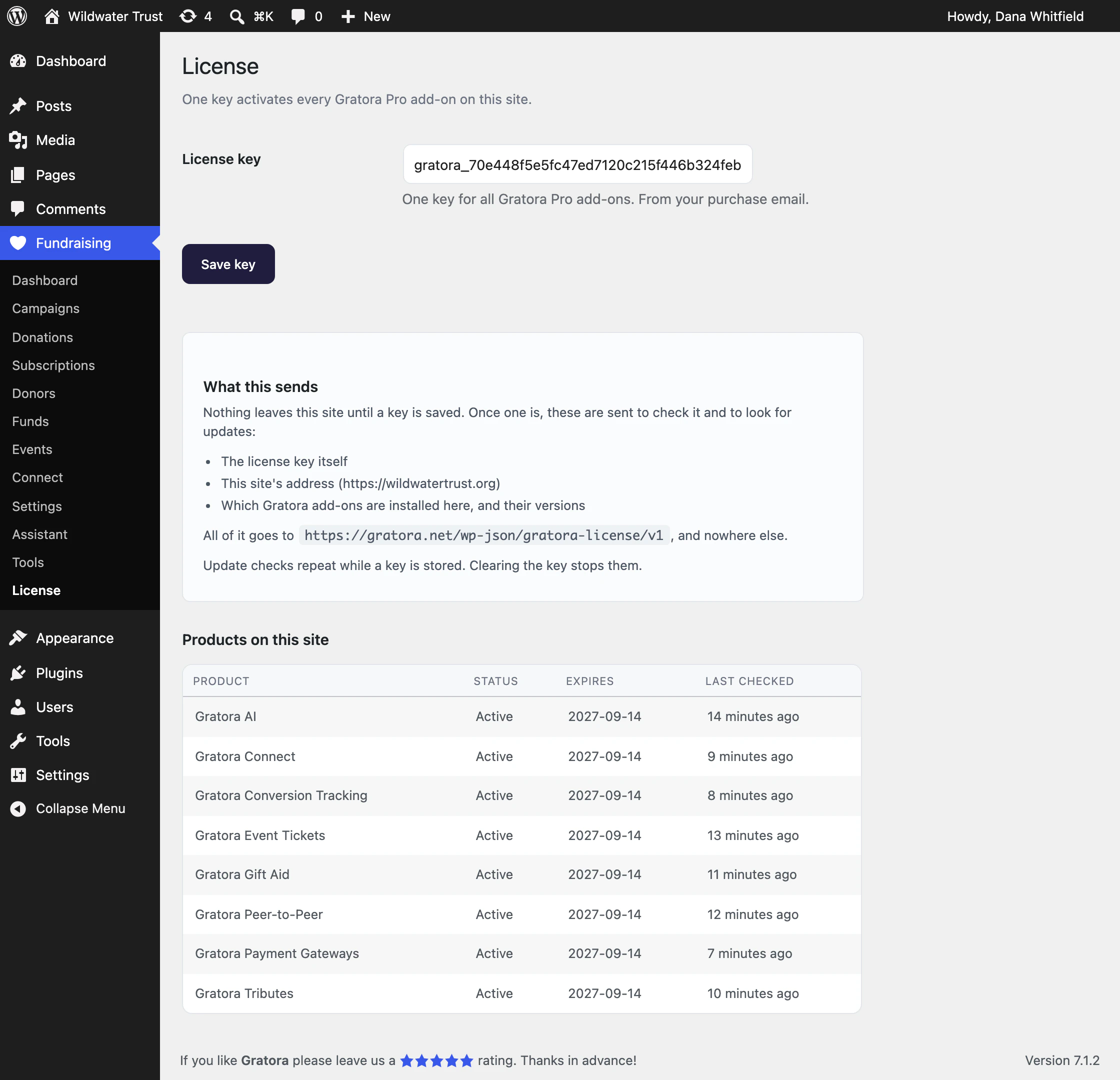
- Go to Fundraising > License.
- Paste your key into License key. Keys start with
gratora_. - Click Save key.
One key activates every add-on in your plan on this site. You enter it once, and any add-on from the same plan that you install later picks it up on its own.
Saving the key checks it straight away. The Products on this site table lists every Gratora add-on installed on the site, with its status, the date the license for it expires and when it was last checked.
If the Gratora plugin is not active, the License screen moves to Settings > License.
What the statuses mean
Your add-ons keep working whatever the status says. The status decides whether this site receives updates for them.
| Status | What it means |
|---|---|
| Active | The license is paid up and this site holds one of its places. Updates arrive as they are released. |
| Checking | The key is saved and the answer is on its way. Reload the page in a moment. |
| Not activated | No key is saved on this site yet. |
| Grace period | A renewal payment is late, or the plan ended less than 21 days ago. Updates keep coming for now. |
| Expired | The plan ended more than 21 days ago. Updates have stopped. |
| Revoked | The license has ended, for example after a refund. Updates have stopped. |
| Site limit reached | Every site this license covers is in use, so this site gets no updates. See Activate and move sites. |
| Not in your plan | This add-on is not part of the plan this key belongs to. |
| Invalid key | The key was not recognized. Check it against your purchase email. |
The site checks the license again about every 12 hours, whenever someone is working in the admin.
What the site sends
Nothing leaves your site until a key is saved. Once one is, the site sends the key, the site’s address, and which Gratora add-ons are installed with their versions, to check the license and look for updates. It all goes to gratora.net and nowhere else. Clearing the key stops the checks.
Next steps
- Updates and auto-updates
- Activate and move sites
- The getting-started guide for each add-on: Payment Gateways, Conversion Tracking, Connect, Tributes, Gift Aid, Peer-to-Peer, Event Tickets and AI Assistant.